Inside Git: How It Works and the Role of the .git Folder
When we run git init, something invisible—but incredibly powerful—comes to life.
A hidden folder named .git is created, and from that moment onward, Git stops being “just commands” and becomes a content-addressed database that tracks your project’s history with mathematical precision.
If you truly understand what lives inside .git, you stop memorizing Git commands — and start thinking like Git itself.
This article builds that mental model using concepts documented in Wikipedia’s Git internals references, simplified for real developers.
Git’s Core Philosophy (Before Files & Commands)
Git is not:
❌ a diff tracker
❌ a file version tool
Git is a database of snapshots.
Every commit is a complete picture of your project — stored efficiently using references and hashes.
Everything revolves around:
Content → Hash → Object → History
Let’s open the black box.
📁 The Hidden Engine: Inside the .git Folder
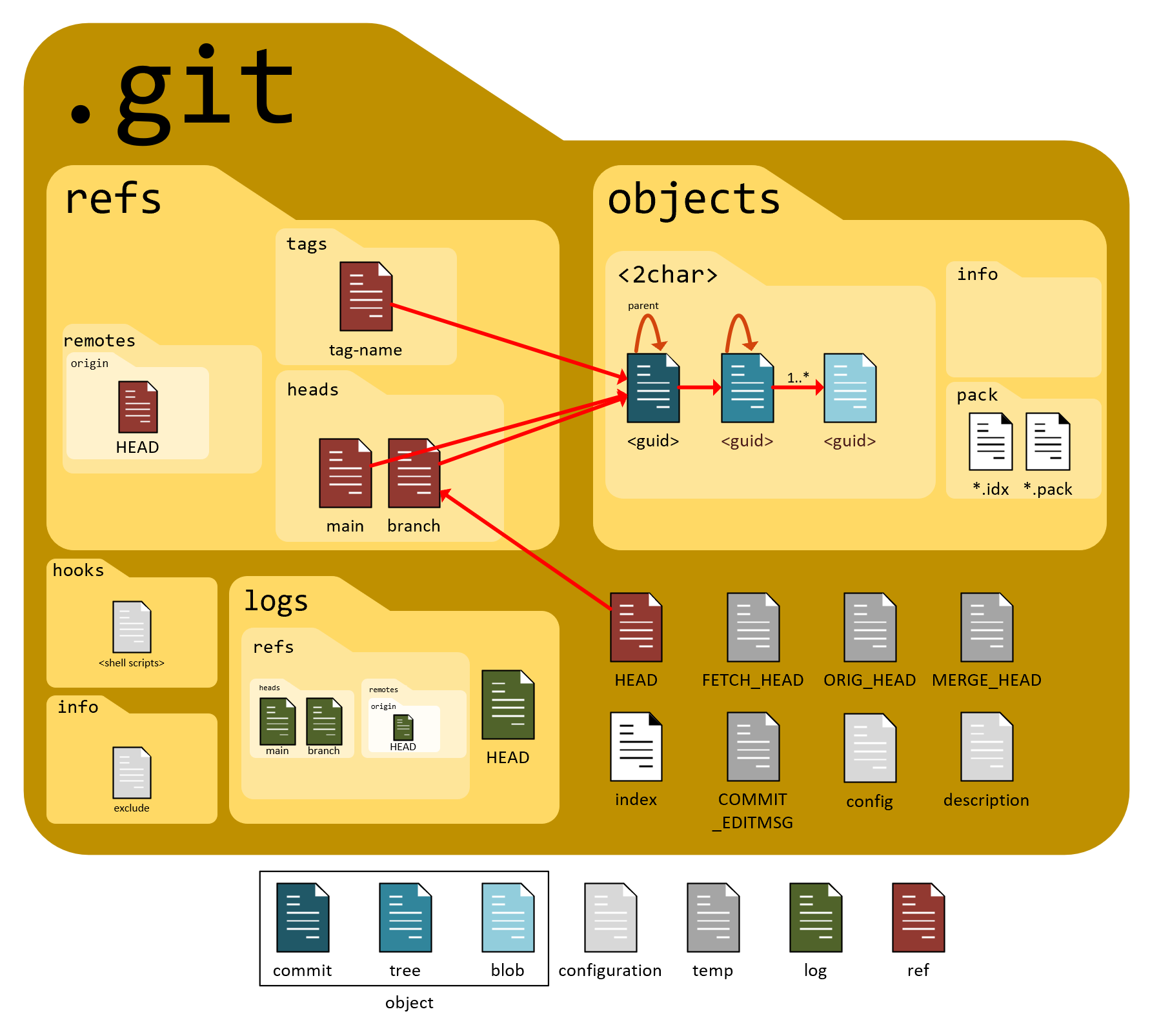
When you initialize a repository, Git creates a directory that looks roughly like this:


Key Parts (Conceptual View)
| Folder/File | Purpose |
objects/ | Where all data lives (commits, files, trees) |
refs/ | Branch & tag pointers |
HEAD | Tells Git your current branch |
index | Staging area (binary file) |
config | Repository settings |
Everything you’ve ever committed exists in objects/.
Git never “edits files” — it stores new objects.
Git’s Building Blocks: Objects Explained Simply
Git has only three core object types:
1. Blob — file content
2. Tree — folder structure
3. Commit — snapshot + metadata
Together, they form Git’s history graph.
Here’s the relationship visually:
Blob (Binary Large Object)
A blob stores:
✔ the contents of a file
❌ not its name
❌ not its path
If two files anywhere in history have the same content → Git stores only one blob.
Efficiency by design.
🌳 Tree Object
A tree represents a directory.
It maps:
filename → blob hash
subfolder → tree hash
Basically:
A tree is a folder pointing to files and other folders.
📦 Commit Object
A commit stores:
• pointer to a tree (project snapshot)
• parent commit(s)
• author
• timestamp
• message
So a commit doesn’t store files.
👉 It stores a reference to the snapshot tree.
Why Hashes Rule Everything
Git uses SHA-1 hashes (40-character strings like):
e68ff1c2b4878c9f...
The hash is generated from:
object type + content + metadata
This gives Git:
✅ data integrity
✅ tamper detection
✅ deduplication
✅ speed
Change one byte → new hash → new object.
That’s why Git is incredibly reliable.
⚙️ What Actually Happens During git add & git commit
Let’s walk through the internal flow.


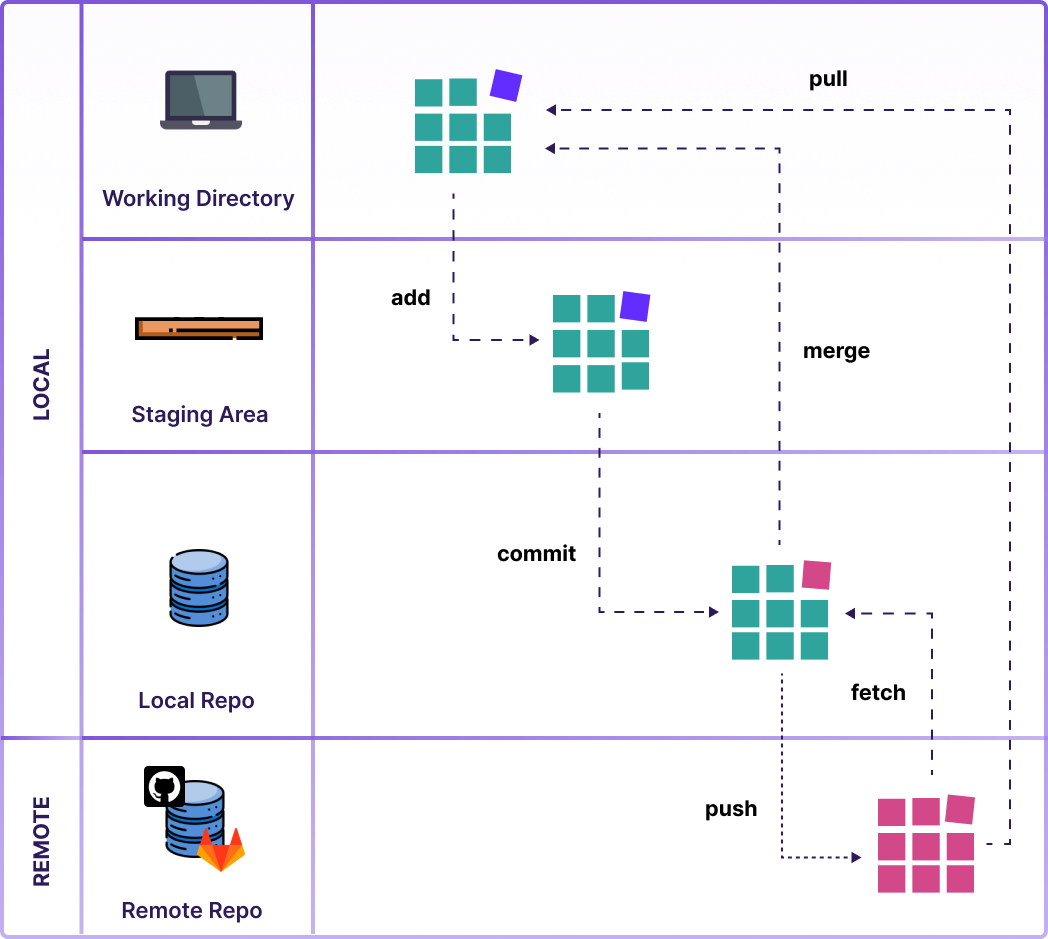
When You Run git add file.txt
Git:
Reads file content
Creates a blob object
Stores it in
.git/objects/Updates the index (staging area) to reference that blob
Nothing committed yet — just staged.
When You Run git commit
Git:
Builds tree objects from staged blobs
Creates a commit object pointing to that tree
Updates branch reference to new commit
Now history is created.
Git Is a Graph of Snapshots (Not File Diffs)
Each commit points to:
• its snapshot
• its parent commit
Which forms this:
commit → commit → commit → ...
A linked history graph.
Branches are just pointers.
Tags are just pointers.
HEAD is just a pointer.
Once you realize this — Git becomes simple.
Mental Model That Makes Git Click
Think of Git as:
A content-addressed snapshot database with pointers.
Not commands.
Not magic.
Just:
Files → Blobs
Folders → Trees
Snapshots → Commits
History → Linked hashes
Everything else is UX on top.
References (Wikipedia-based)
All technical concepts in this article are derived and simplified from:
• Git object model
• Git internal storage design
• SHA-1 content addressing
• Snapshot-based version control
(As documented in Wikipedia’s Git internals and version control architecture sections)


